Product tables
When a symbol in a drawing is meant to represent a specific product – a circuit breaker from a particular manufacturer, say – a whole range of attributes has to be filled in: product name, manufacturer, part number, current and more. Entering them by hand for every symbol is tedious. Product tables solve this: you prepare the product data once in a table and then fill it into a symbol with two clicks.
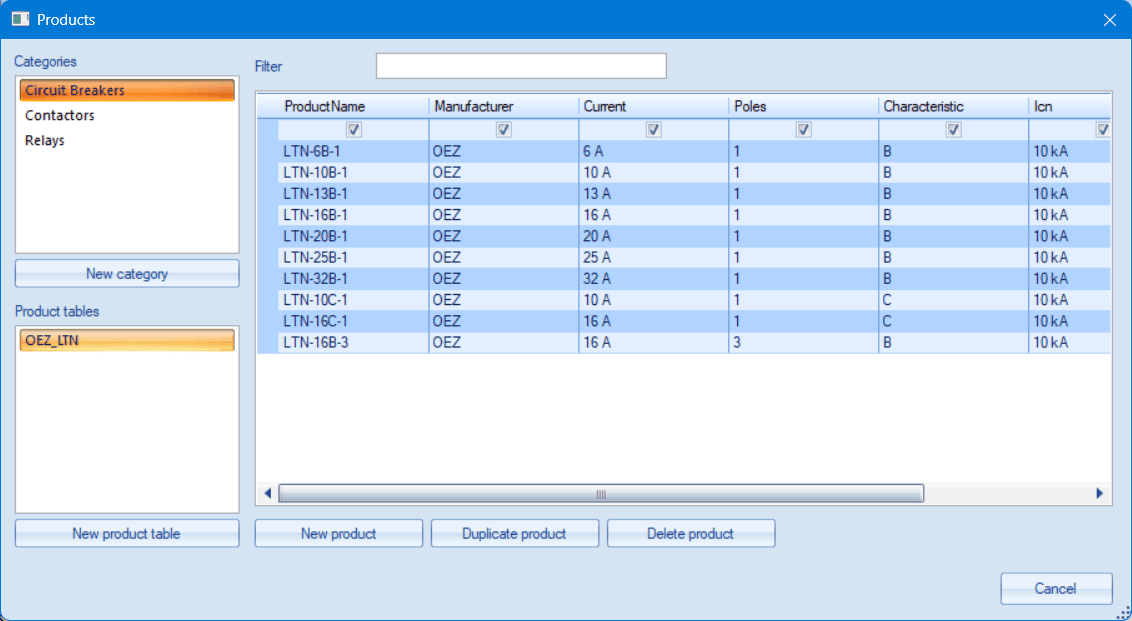
What a product table is
A product table is a simple table in which each row is one product (e.g. the LTN-10B-1 circuit breaker) and the columns are its data (manufacturer, current, number of poles…). You decide the columns yourself – a table of circuit breakers can have completely different columns from a table of relays.
The tables are stored as files with the .productset extension in the symbol
library, in the _PROD folder. Subfolders form categories (circuit breakers,
relays, contactors…) – you can create any of your own. The program comes with several
sample tables; they serve as an example of the data structure and need not contain the
complete or current range of a manufacturer.
The Products window
You open the window with the menu command Tools – Products. On the left you
select a category and below it a particular table; the grid shows its products.
- New category – creates a new folder for tables.
- New product table – creates a table; it starts with a single column
ProductName. - New product, Duplicate product, Delete product – row management. You edit the values directly in the grid; changes are saved with the Enter key or by moving to another cell (e.g. with the Tab key or by clicking the mouse).
- Filter – a text box above the grid. As soon as you start typing into it, only the rows that contain the entered text in any column are kept. It makes searching in larger tables easier.
Table columns
You manage the columns by right-clicking the column header – just like the columns of reports:
- Add column – offers the recommended columns (Manufacturer, PartNumber, Current, Poles…) and the option to enter your own.
- Column settings – editing the column key (e.g. correcting a typo; the values in all products are transferred automatically) and of the optional caption, which is shown in the header instead of the key (e.g. „Icn“ instead of „BreakingCapacity“).
- Align left / Align middle / Align right – column alignment; useful for numeric data.
- Delete column – including the values in all products.
⚠️ Column keys must not begin with an underscore _ – that is reserved
for the system attributes of the program.
⚠️ We strongly recommend keeping the ProductName column in every
table and filling it in for all kinds of products. It is the main identification of
a product – the program uses it to check for duplicates and future versions will use it
when searching for products. Do not delete it and do not replace it with a column of your
own under a different name.
Filling in the attributes of a symbol
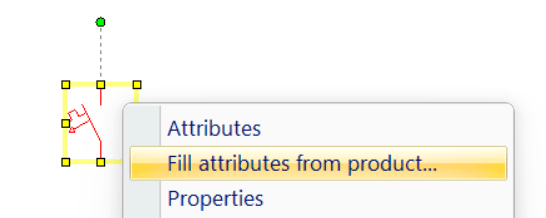
- Right-click a symbol in the drawing.
- Choose the command
Fill attributes from product... - In the Products window select the row with the product and click
Fill attributes.
The values of the ticked columns are copied into the attributes of the symbol. The newly added attributes are invisible in the drawing – the drawing stays clear, but the data is available for example for the bill of materials. You can display them at any time in the symbol attributes dialog.
In addition, the value of the ProductName column is written into the
Type field of the symbol – the type designation of the product is thus visible
in the drawing right next to the symbol.
If an existing attribute value would be overwritten by a different one, the program asks first. Attributes that are not present in the product remain unchanged.
Which columns are filled into the symbol
The first row of the grid contains check boxes. Only the ticked columns are copied into the attributes of the symbol. You can, for example, untick a column with an internal note that you do not want in the drawing. The setting is remembered for each table separately.
Several symbols at once
If you select several occurrences of the same symbol in the drawing (inserted from the same file in the library, e.g. five identical circuit breakers), the command fills the attributes into all of them at once. If the selection contains different symbols, the command is unavailable – this prevents the attributes of unrelated items from being overwritten by mistake.
Good to know
- Only the resulting attributes are stored in the drawing – no link to the table. The drawing therefore opens on a computer without the product library as well, and a later change of the table does not change existing drawings.
- Filling in the attributes can be taken back with the
Undocommand (Ctrl+Z). - The bill of materials can show a column for any attribute – the data from the products appears in it automatically.
- For standard data we recommend using English column keys (
Manufacturer,Current…) – it makes sharing tables and drawings easier.
