Bill of Materials
The bill of materials gives you a complete overview of all symbols in the drawing — what is where and how many of each you need. Open it with Outputs - Bill of materials.
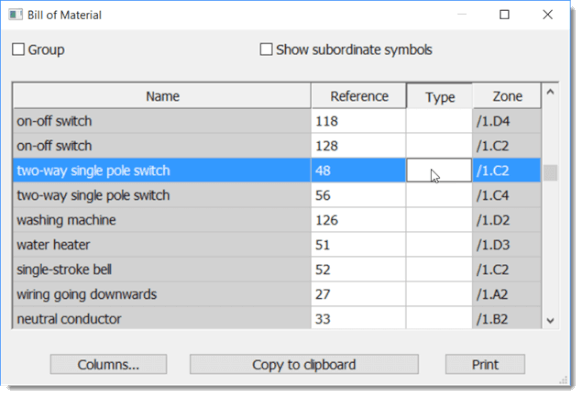
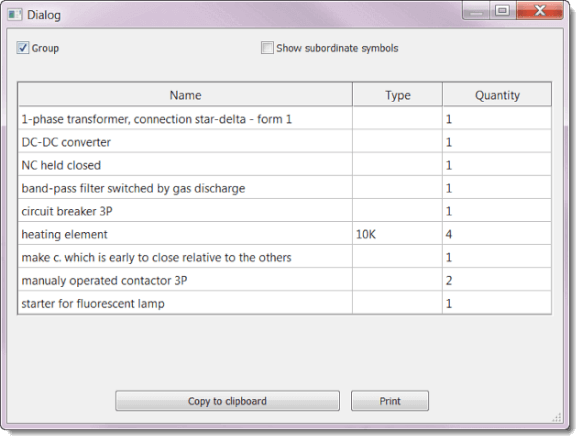
Check Group to get a grouped list — the components grouped by type with their total quantity.
Bill of Materials Filter
Don't need every symbol in the bill of materials? The filter lets you choose exactly what is shown.
In the bill of materials window, press the Filter button. A dialog opens with the Symbols filter, Layers filter and Pages filter tabs.
Symbols filter
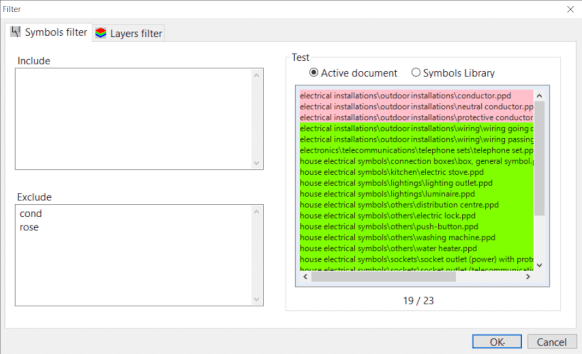
The symbols filter has two text fields. In the Include field, list the names of the symbols that should be in the bill of materials; if it is empty, all symbols are included. In the Exclude field, list the names of the symbols you want to leave out.
Put each name on its own line. Partial names are enough — the program includes every symbol whose name contains the text. The filter supports two special characters:
^ marks the beginning of a name. For example, ^dis matches all symbols starting with "dis".
$ marks the end of a name. For example, lay$ matches all symbols ending with "lay".
Test Area
The right side of the window lists symbols so you can test the filter. The test area works in two modes:
-
Active document
Shows all symbols in the drawing. Symbols that pass the filter are green, the others red.
-
Symbols Library
Shows only the library symbols that pass the filter — so you can check how the filter would work on symbols that are not in the drawing yet.
Pages filter
In the Show only objects from these pages field, enter page numbers separated by commas (e.g. 1, 6), a page range (e.g. 15-20) or a combination of both (e.g. 1, 5-12).
