Layers
What Are Layers?
Think of layers as transparent sheets stacked on top of each other. Each sheet holds a different part of your drawing — for example, a floor plan on one layer and electrical wiring on another. This keeps everything organized and easy to manage.
Why Use Layers?
- Organization: Break a complex drawing into smaller, focused parts.
- Visibility control: Show or hide layers so you can focus on exactly what you need.
- Safe editing: Changes on one layer don't affect objects on other layers.
- Selective output: Print or export only the layers you want.
Watch Out For
- Losing track of objects: It's easy to forget which layer an object lives on, making it hard to select or edit. This can slow you down.
When Should You Use Layers?
Use layers when they genuinely help — not just for the sake of it.
Good use cases:
- Maps with electrical wiring: Put the map on one layer and the wiring on another. You can toggle each independently, which makes analysis and planning much easier.
- Floor plans with electrical installations: Draw the building layout on one layer and the electrical installation on another. You can edit the installation without touching the floor plan.
Not needed:
- Drawings with only electrical elements: If everything belongs to the same category, layers don't add much value.
Important: When you draw an electrical connection (wire), it will only snap to symbols on the active layer.
An electrical circuit should be drawn within a single layer (it should not be split across multiple layers).
Moving Objects Between Layers
You have two options:
- Right-click method: Right-click the object, select "Move to Layer..." from the context menu, and pick the target layer.
- Cut and paste: Select the objects, press
Ctrl+X, switch to the target layer, and pressCtrl+V.
Managing Layers
Layer Panel Buttons
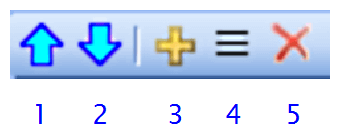
- Move layer up.
- Move layer down.
- Add layer.
- Rename layer.
- Delete layer (only empty layers can be deleted).
Showing and Hiding Layers
Click the checkbox next to a layer's name in the Layer panel to toggle its visibility.
Setting the Active Layer
Click a layer's name in the Layer panel to make it the active layer.
FAQ
Can a background drawing be inserted into the program for adding electrical installation drawings?
Yes, the program supports working with layers.
You can insert a floor plan image into one layer and draw the electrical installation in another layer.
