Single-line and Detailed Electrical Diagrams
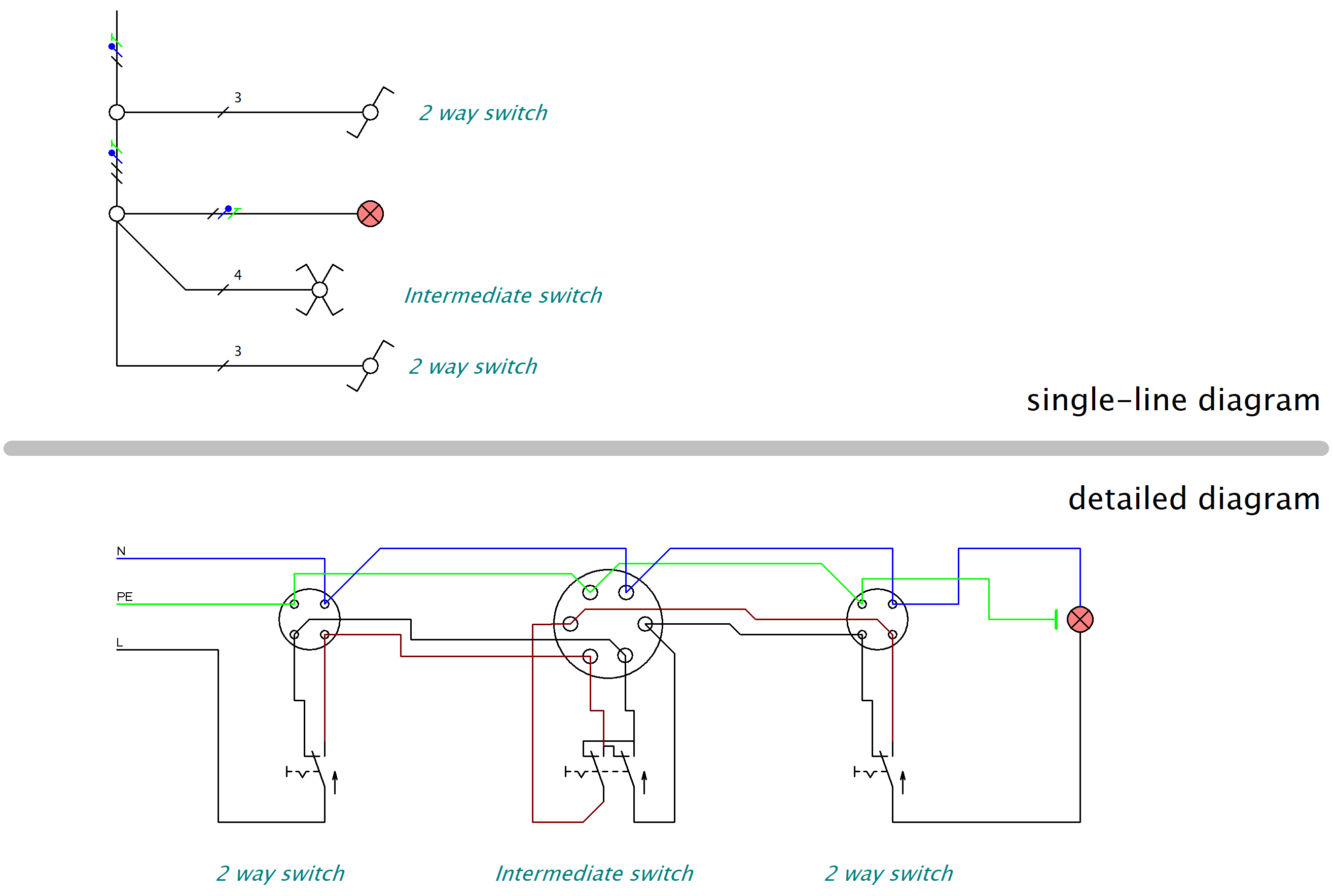
Before you start drawing, it helps to know which type of diagram you need. A single-line diagram shows what is where. A detailed (multi-line) diagram shows how it works. ProfiCAD handles both.
Single-line(installation plan) | Detailed(circuit diagram) |
|---|---|
| shows the physical location of equipment (e.g. in buildings) | shows the exact current path and how the circuits work |
| all conductors of one cable are drawn as a single line | each conductor is drawn as a separate line |
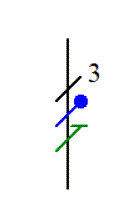
|
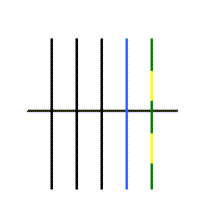
|
How to draw: |
|
place the symbols conductor , protective conductor , protective conductor and neutral conductor and neutral conductor over the wire over the wire
|
draw the cable using the cable drawing tool |
Symbol examples: |
|
switch single-pole, single-throw |
|

|
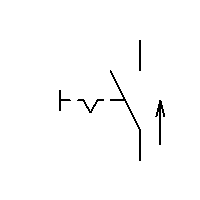
|
double-pole switch double-pole, single-throw |
|

|
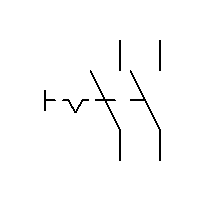
|
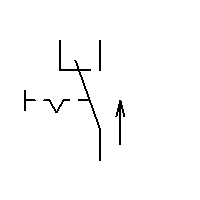
two-way switch single-pole, double-throw |
|

|
|
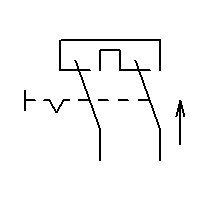
intermediate switch double-pole, double-throw |
|

|
|
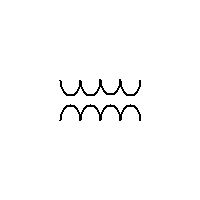
transformer |
|
|

|
Example: the same wiring in both formats
Automatic cable length calculation for floor plans
When you draw an electrical installation in a floor plan, the program automatically calculates the approximate cable lengths for you. How does it work? In the single-line view, one wire represents one cable. The program takes the length of the wire in the drawing and multiplies it by the page scale.
Example: A 10 cm wire at a scale of 1:50 = a cable length of 5 metres (10 cm x 50 = 500 cm = 5 m).
How to display cable lengths:
- Create a list of wires.
- Right-click the header of the list of wires table.
- Choose
Add columnand select the variable_len.
💡 Pro tip: Treat the cable lengths in the list as approximate. In practice, always add a 10–15 % reserve for bends, wall penetrations and unexpected routes.
