How to Draw Graphical Shapes
Pick the shape you want from the Draw menu or click its button on the toolbar.
Selection Mode
To switch back to Select mode, do any of the following:
- Press
Esc. - Click this icon:

- Move your mouse pointer to the toolbar area at the top of the main window.
Shapes
 Line
Line
Click the start point, then click the end point. Press Esc when you're done.
 Polyline
Click to place each vertex. Made a mistake? Press Backspace to remove the last segment. Press Esc to finish.
 Curve
Curve
Draws connected Bezier curves that automatically link together for smooth transitions.
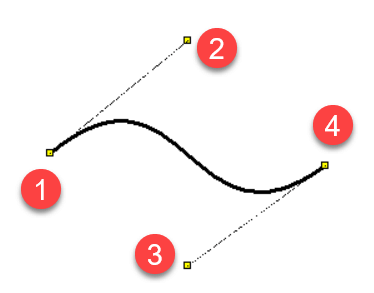
A Bezier curve has four points: two endpoints (1) and (4), plus two control points (2) and (3). The endpoints define where the curve starts and ends, while the control points shape the curve by pulling it like magnets.
 Rectangle
Click the upper-left corner, then click the lower-right corner. After that, you can draw another rectangle or pick a different shape.
 Rounded Rectangle
Works like a regular rectangle, but you click a third point to define the corner rounding.
 Arc Defined by Three Points
Start it with the menu command Draw - Arc defined by 3 points or the icon  .
.
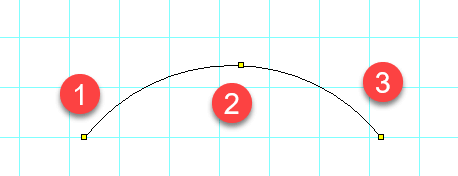
The first click sets the start point (1), the second click sets a pass-through point (2), and the third click sets the endpoint (3). Press Esc to finish.


 Arc, Chord, and Pie
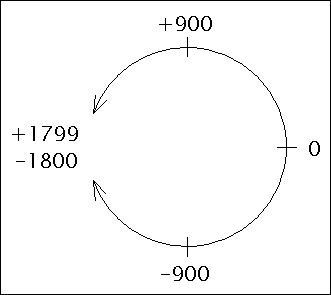
Draw these like a rectangle, then set the starting and ending angles in the Properties panel. Angles are entered in tenths of a degree.
 Ellipse
Draw it the same way as a rectangle -- you'll get an ellipse inscribed within the rectangle bounds.
 Polygon
Click to place each vertex. Press Esc when the polygon is complete.
Connection points and junctions
 Connection Point
Connection points (outlets) are used only in the symbol editor (.ppd files). They appear in red for visibility and grow larger when selected.
 Junction
A junction marks a galvanic connection between two conductors. You can only place it where two wires cross.
Editing and properties
How to Draw Arrows
Draw a line, Bezier curve, or arc, then pick the arrow type in the Properties panel.
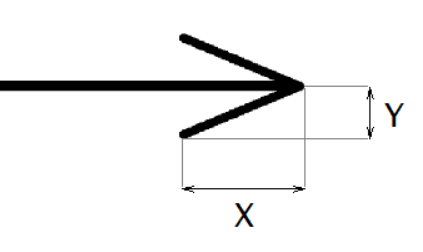
To adjust the arrow shape, enter values for Scale X and Scale Y in the Properties panel. For example, 1.23 enlarges the arrow by 23%.
Flip the arrow direction by clicking the flip arrow link in the Properties panel.
Orthogonal Drawing Mode
Hold Ctrl while drawing to constrain lines to vertical, horizontal, or 45-degree angles. Rectangles become squares and ellipses become circles.
Adding or Removing Points
You can add or remove points on any line or polygon.
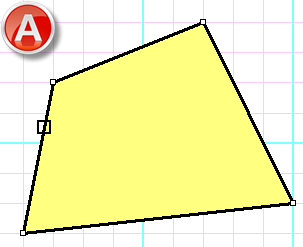
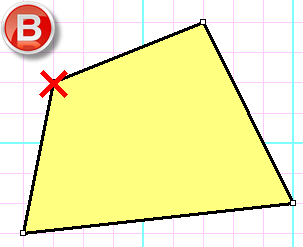
Here's how:
- Select the line or polygon.
- Choose
Edit - Add or delete. - Click on an edge to add a point, or click on an existing node to remove it.
- Press
Escto return to Selection mode.
Bezier Curve Control Points
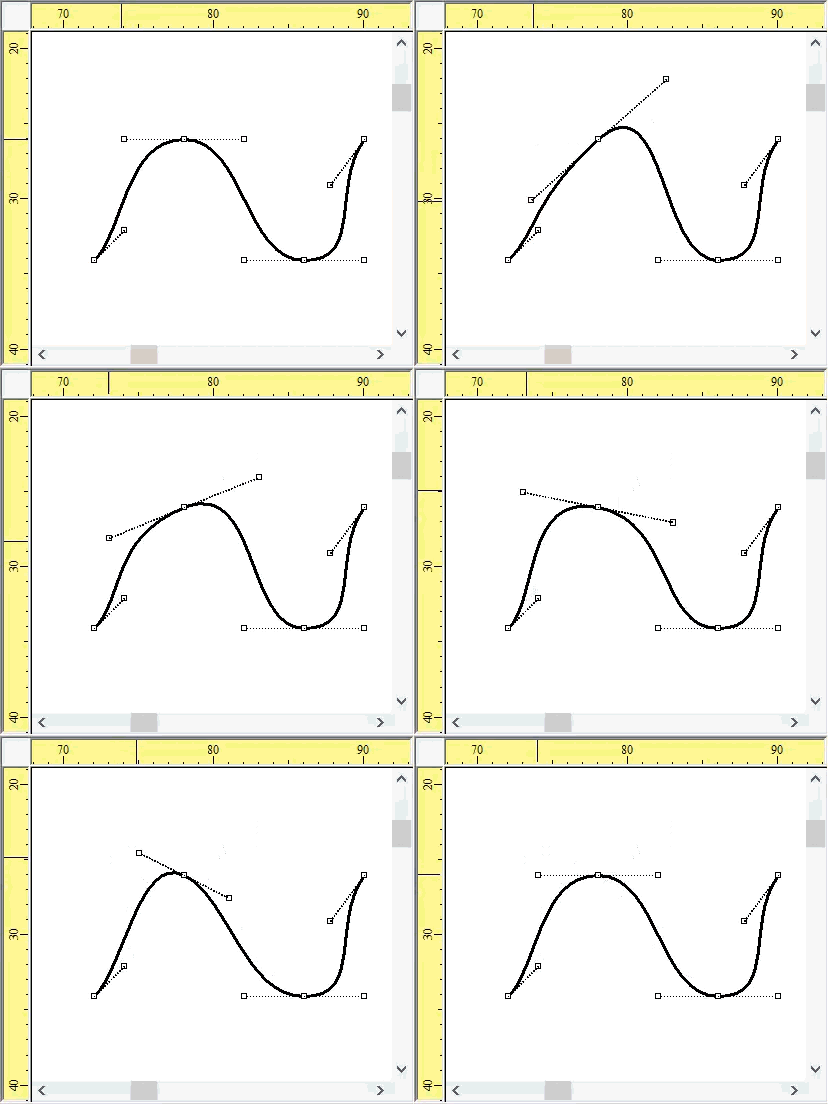
Hold Ctrl while dragging a Bezier control point to keep the opposite control point aligned for a smooth curve.
Dashed Line
Select a line and choose the line type in the Properties panel. Use the Line type Scale property to adjust segment sizes -- for example, 1.3 makes segments 30% longer.
Hatching
Select a closed shape and pick a hatching type in the Properties panel.
💡 Pro tip: The Ctrl key is your best friend when drawing. It helps you draw straight lines, symmetric curves, and exact squares and circles.
