Inserting Images
You can place images — such as photographs or diagrams — directly into your drawing. Supported formats: BMP, JPG, PNG, GIF, and WMF.
How to Insert an Image
- Select an image in Windows Explorer, press
Ctrl + C, thenCtrl + Vin the ProfiCAD drawing. - Drag an image from Windows Explorer directly into the ProfiCAD drawing.
- Use
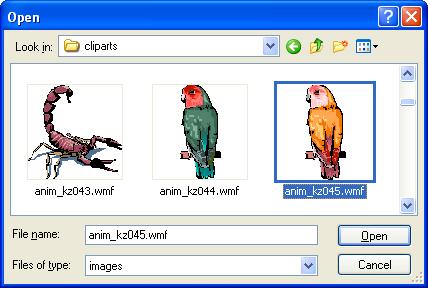
Insert-Imagefrom the menu — a dialog box opens where you pick the file. - Paste a picture from the clipboard.
Keep Your Images Lean
⚠️ Large images bloat your document size. Before inserting, resize the image and adjust its resolution in a graphics editor. Avoid inserting multi-megabyte images.
Pasting Pictures from Clipboard
Need to grab something from a PDF catalog or another app? You can paste images straight from the Windows clipboard — no need to save to a file first.
- In the source PDF, zoom in as much as possible to get a sharp capture. Use the
Zoom Incommand or scroll with the mouse wheel while holdingCtrl. -
Take a screenshot:
- For Windows 10, press
Win+Shift+S. - For older systems, press
PrtScn.
- For Windows 10, press
- Switch to ProfiCAD and press
Ctrl + V.
Resizing an Image
Select the image and drag one of its corner handles. The image resizes symmetrically — its center stays in the same place.
If you hold the Alt key while dragging, the resize is not symmetrical — the opposite corner stays anchored, so the image grows or shrinks toward the corner you are dragging.
Image Size Limits
Maximum size of a single image: 10 MB. Larger files are rejected. To fix this, reduce the image resolution or save it in a more efficient format (e.g. PNG or JPG instead of BMP).
Warning above 5 MB. Images larger than 5 MB can be inserted, but the program shows a warning first — large images may slow down your document. You can continue or cancel.
Protection against extremely large images. Even a small file (e.g. a compressed JPG) can take up a huge amount of memory once opened, if its resolution is very high. Such images are also rejected — reduce the resolution and try again.
Total limit per document: 100 MB. The combined size of all images in one document should not exceed 100 MB. When exceeded, the program shows a warning and suggests removing unused images.
💡 Tip: If an image is too large, reduce its resolution in any graphics editor (even Paint will do). For schematics and drawings, a resolution up to 1920 × 1080 pixels is usually more than enough.
