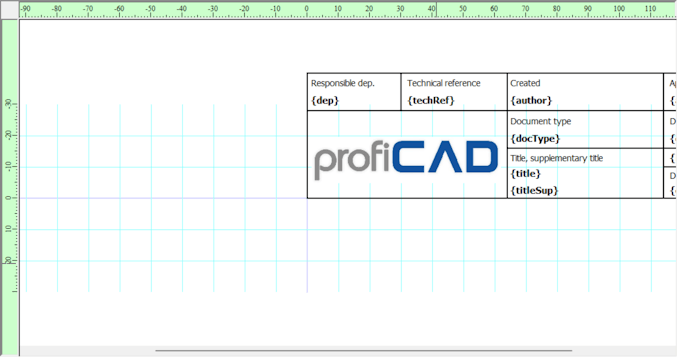
Title Block (Drawing Header) for Technical Drawings
The title block is the standardized information area on a technical drawing -- typically in the lower-right corner. It shows key details like the drawing name, number, revision level, creation date, and scale.
You can use ProfiCAD's default title block or create your own custom one.
Variables
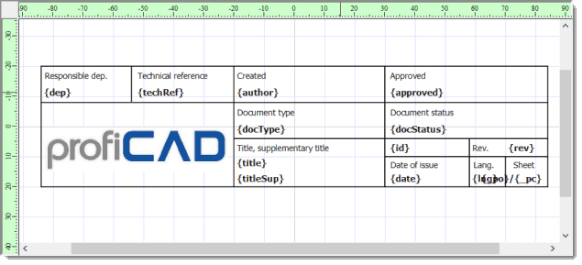
Variables let you automate text in the title block. Instead of editing text directly, you define variable values once, and the title block updates automatically. Use only English letters and numbers for variable names -- no spaces or special characters.
How Variables Work:
- In the title block editor, insert variables enclosed in curly brackets, e.g., {project_name}. Use only letters and numbers for variable names -- no spaces or special characters.
-
In your drawing, define variable values in the
Variableswindow (without brackets). For example:Name Value project_name House Wiring - The variable {project_name} in the title block will then display as "House Wiring."
How to Customize the Title Block
- Open the "File" menu and select "Open Title Block."
- Choose a title block, such as "standard9.ptb."
- Delete the ProfiCAD logo by selecting it and pressing the "Delete" key.
- Insert your company logo using the "Insert - Image" command.
- Rearrange the text layout to fit your needs.
- Add variables (enclosed in curly brackets).
- Save the title block (
Ctrl+S) and close it (Ctrl+W). - In the drawing, press
F12, go to the "Title Block" tab, and click "Reload."
Creating a Title Block
To create a brand new title block, use File - New Title Block. You can also modify an existing title block and save it with a new name.
How to Insert a Title Block
a) For all pages:
Press F12, go to the Title Block tab, and click Change to select a title block. This applies to all pages that don't have a page-specific title block assigned.
b) For a specific page:
Right-click the page, select Page Settings, and go to the Title Block tab.
How to Specify Variable Values
a) For all pages:
Press F12 and go to the Variables tab.
b) For a specific page:
Right-click the page, select Page Settings, and go to the Variables tab.
Enter variable names without curly brackets. Example:
| Name | Value |
| project_name | Summer House Wiring |
Title Block Settings
You can configure:
- Distance from the page margins.
- Position on the page (left, right, or bottom).
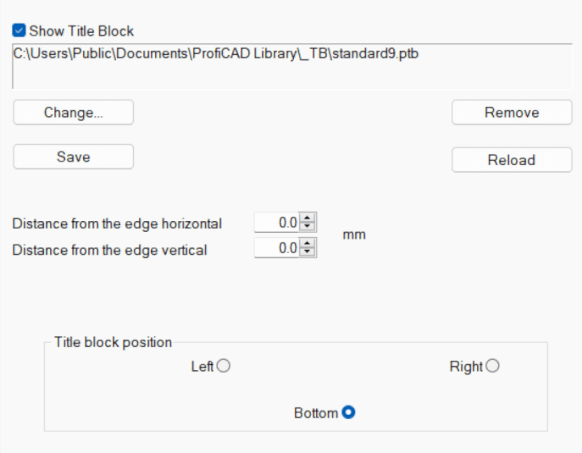
Button Functions
- Change
- Selects a different title block.
- Save
- Saves the current title block for future use.
- Remove
- Removes the title block from the drawing.
- Reload
- Refreshes the title block with any recent changes made in the editor.
Initial Title Block
Press F12, go to the Others tab, and choose a default title block under "Initial Title Block for Drawings." Every new drawing will start with this title block.
Drawing Symmetry
When designing title blocks, make sure they are drawn symmetrically along the workspace axes -- the x and y axes should pass through the center of the block.