Style Library
If you use the same color, line type or fill again and again, you don't have to set them by hand every time. The style library (menu Edit - Style library) remembers your styles and lets you apply them to any object with one click.
Styles in the library are displayed according to the object type:
As a line - for lines and wires
As an ellipse - for filled objects (rectangles, ellipses, polygons, etc.)
The library has two parts:
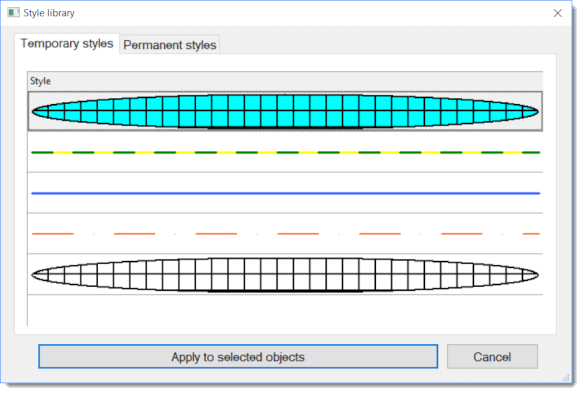
Temporary styles - the last 20 styles you used are stored here automatically.
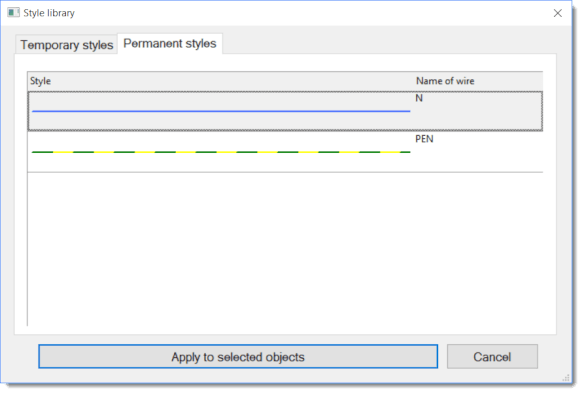
Permanent styles - here you keep the styles you always want at hand.
How to add a style to the library
Just copy the style from any object – it is automatically stored in the temporary styles area.
How to move a style to the permanent styles
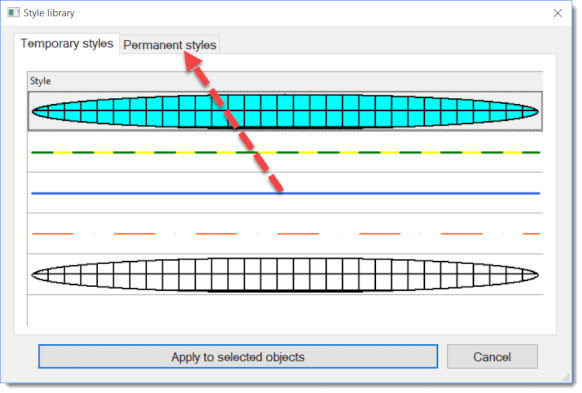
Simply drag it with the mouse to the permanent styles tab. In the same way you can drag a permanent style back to the temporary styles tab if you want to remove it.
How to use a style from the library
- In the drawing, select the target object.
- Open the menu
Edit-Style library. - Choose the style you want (temporary or permanent).
- Click the
Apply to selected objectsbutton.
Automatic style assignment for wires
The program can automatically apply a style to wires based on their name. If you name a style "PEN", for example, it is applied to every wire named PEN.
Set it up like this:
- In the style library, in the
permanent stylesarea, enter the wire name for the style. - Draw a new wire and enter the matching name in the Properties panel.
The program automatically transfers the style from the library to the wire.
Where are styles stored?
Styles are in the symbol library, in the files
_CONF\styles\temp.xml and _CONF\styles\perm.xml
💡 Pro tip: If your project uses different colors for different types of wires (PE, N, L), set up permanent styles with matching names for them. The wires are then colored automatically.
