What's New Since Version 14
ProfiCAD 14.1.4
10/16/2026Renumbering Terminals
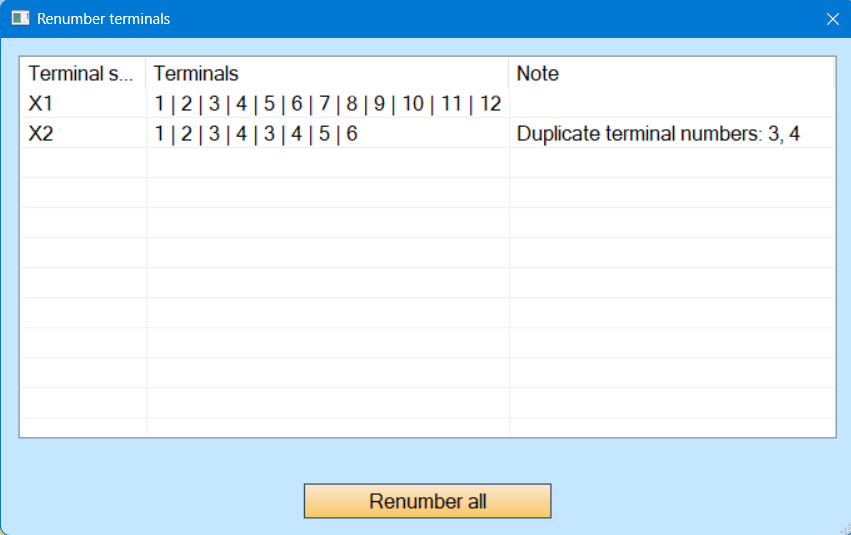
The Edit → Renumber terminals dialog has been reworked so that it also works for terminal strips made of single terminals and for projects with several terminal strips.
- Every terminal strip is numbered from 1. Previously the numbering continued across all strips of the project (X1 = 1–8, X2 = 9–12). If you need continuous numbering, set the Start number property of the blocks manually.
- Single terminals. Terminals with the same reference spread over the drawing are sorted by position (page, top to bottom, left to right) and numbered 1 to N. You no longer need to set the start number of every terminal.
- Selective renumbering. If you select rows in the dialog, only the selected strips are renumbered; the others stay unchanged.
- The Note column warns about a colon in the reference, duplicate terminal numbers and symbols without numeric outlet attributes.
The Explorer now shows the numbers of terminals and the List of terminals report is sorted by terminal strip and terminal number. Everything about terminals is summarized in the new manual chapter Terminals.
Crosshairs
When you drag a single object, green guide lines appear as soon as its center comes close to the center of another object, and the object aligns with it horizontally or vertically. The feature can be switched off in the View → Crosshairs menu.

ProfiCAD 14.1.2
9/28/2026Product Tables
In addition, the value of the ProductName column is written into the
Type field of the symbol – the type designation of the product is thus visible
in the drawing right next to the symbol.
ProfiCAD 14.1.1
9/23/2026Product Tables
When a symbol in a drawing is meant to represent a specific product — a circuit breaker from a particular manufacturer, say — a whole range of attributes has to be filled in: product name, manufacturer, part number, current and more. Entering them by hand for every symbol is tedious. Product tables solve this: you prepare the product data once in a table and then fill it into a symbol with two clicks.
What a Product Table Is
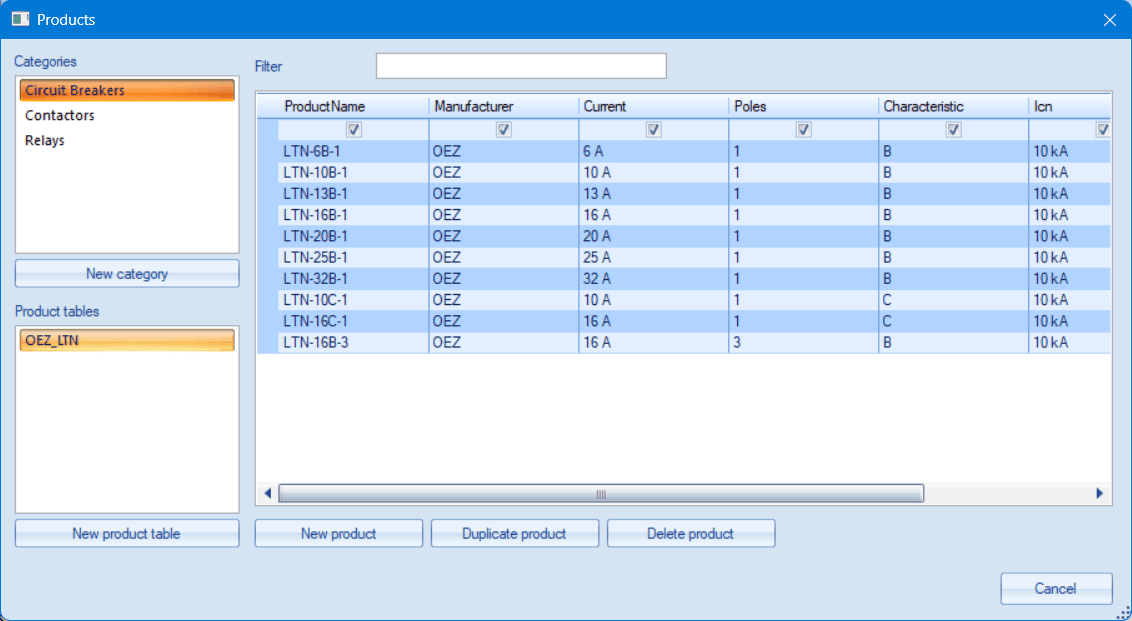
A product table is a simple table in which each row is one product (e.g. the LTN-10B-1 circuit breaker) and the columns are its data (manufacturer, current, number of poles…). You decide the columns yourself — a table of circuit breakers can have completely different columns from a table of relays. You open the tables with the Tools → Products command; subfolders in the library form categories, so you can organize your range the way you want. The program comes with several sample tables.
Filling In the Attributes of a Symbol
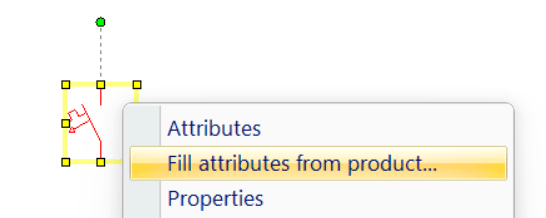
Right-click a symbol in the drawing, choose Fill attributes from product..., select the row with the product in the Products window and click Fill attributes. If you select several occurrences of the same symbol in the drawing, they are all filled in at once.
Good to Know
- Only the columns you tick in the first row of the grid are copied into the symbol. The setting is remembered for each table separately.
- The newly added attributes are invisible in the drawing — the drawing stays clear, but the data is available for example for the bill of materials.
- Only the resulting attributes are stored in the drawing, no link to the table. The drawing therefore opens on a computer without the product library as well.
A detailed description can be found in the manual, in the chapter Product tables.
If you have version 14, the update is free — use the Help → Update command.
ProfiCAD 14.0.4
9/4/2026Cross References
New Tab for Cross References
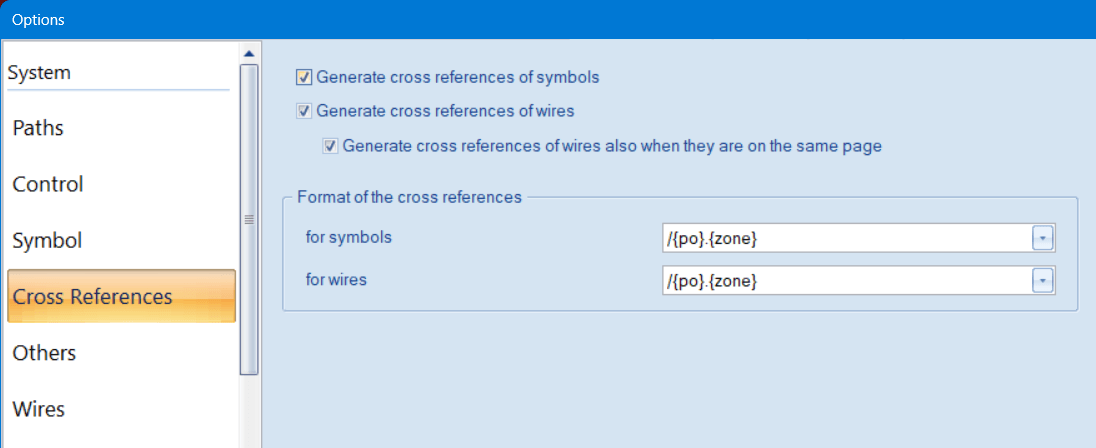
A new tab “Cross References” has been added to the program options. It brings together all settings related to cross references in one place, which makes the options easier to navigate.
Cross References of Wires on the Same Page
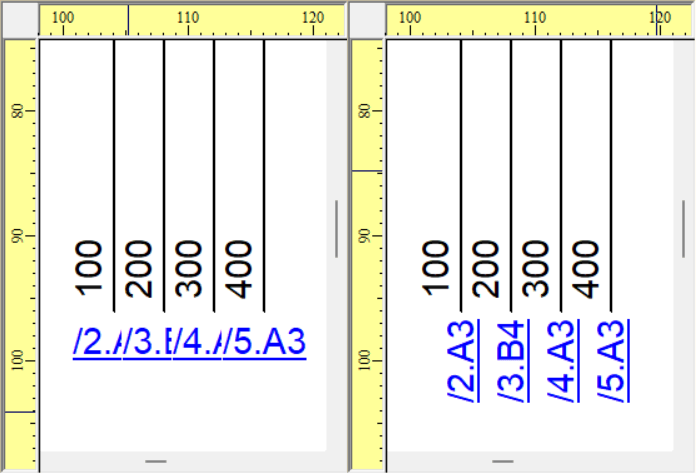
The new option “Generate cross references of wires also when they are on the same page” makes the program create cross references even between wires that lie on a single page.
Rotating Wire Cross References
Wire cross references can now be rotated by 90°. You proceed in the same way as with other objects – select one or more cross references and click one of the “Turn by 90°” icons
 .
.
ProfiCAD 14.0.0
7/18/2026The Program Is Now 64-bit
ProfiCAD is now a fully 64-bit application. What this brings:
- The program is no longer limited by the memory of 32-bit applications (2 GB). It can handle large drawings with many pages, inserted images and large symbol libraries without the risk of running out of memory.
- Higher stability when working with large documents and when printing and exporting.
- On modern 64-bit Windows the program runs natively, without an emulation layer.
Tables
You can now insert a table into a drawing (Insert → Insert Table) — useful for supplementary information such as a legend, a list of building rooms or a list of motor terminals. A table is an ordinary drawing object placed alongside the other objects: cells can be merged, given a fill, borders, alignment and font, and the column widths and row heights adapt automatically to the content.
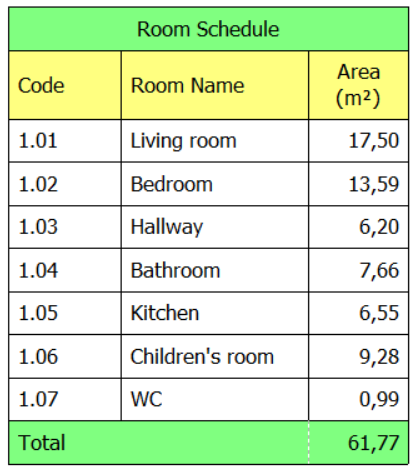
You can find a detailed description in the manual in the chapter Tables.
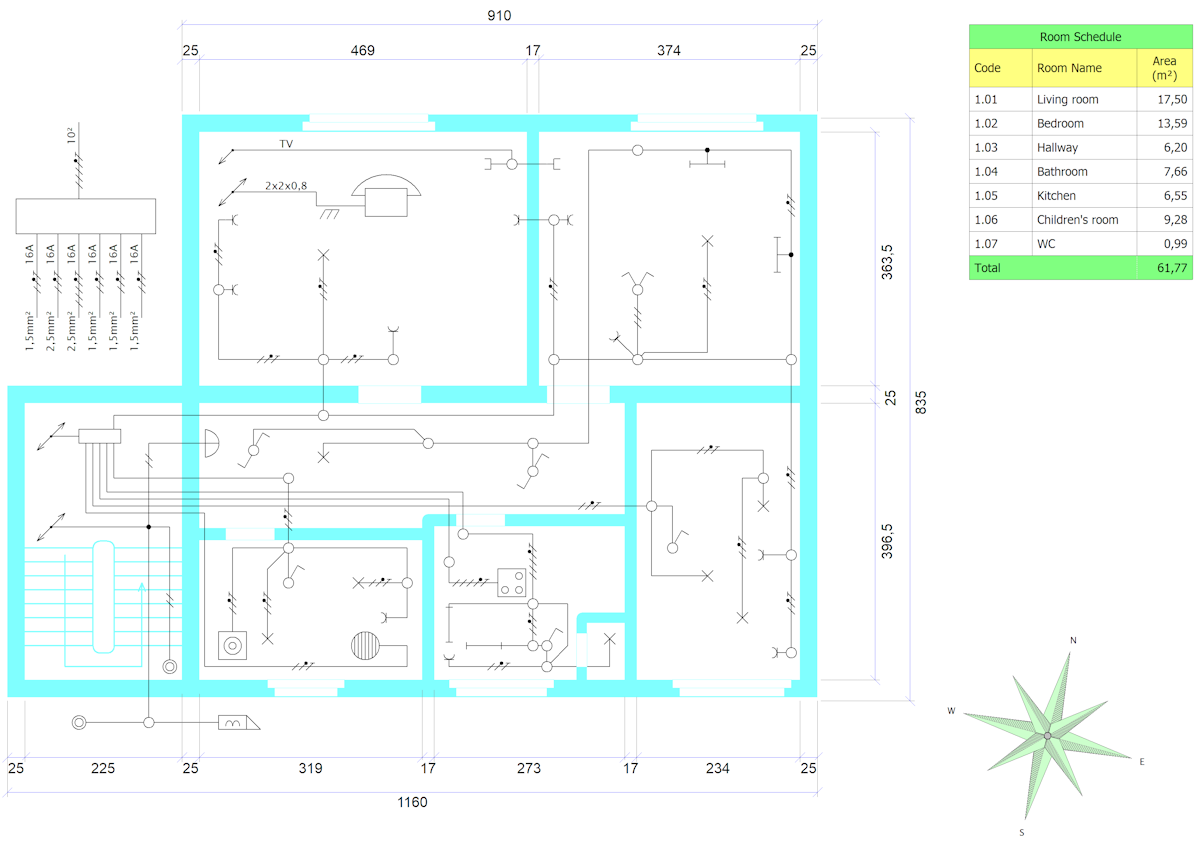
Want to see a table in a real drawing? Have a look at the sample drawing house electrical installation in the group floor plans, where a table serves as a room legend. The drawing is included in the version 14 installation; if you do not have it in your library, you can download it (open the file only in version 14).
Saving Drawings in the Previous Version's Format
In the interest of maximum compatibility and easy collaboration in teams where different versions of the program meet, version 14 can save drawings in the version 12 format (version 13 uses the same format):
- If the drawing does not contain any element specific to version 14 (i.e. tables), it is automatically saved in the version 12 format — users of versions 12 and 13 can open it without any limitation.
- If the drawing contains tables, it is saved in the version 14 format.
- Even a drawing with tables can be saved for colleagues with an older version using the command File → Export for Version 12… A copy of the drawing without the tables is created (the program warns about their removal in advance) and the original file remains untouched.
How to Install
Please back up all your symbols and drawings before installation!
Version 14 is 64-bit and is therefore installed in a different folder than the 32-bit version 13. As a result, after you install version 14, the previous version 13 remains installed on your computer alongside the new version. To avoid confusing the two versions, we recommend that you first uninstall version 13 (Windows Settings → Apps) and only then install version 14.
Download the installer for version 14 and run it. The Help → Update command cannot be used to upgrade to version 14 — it only installs updates within the current major version (e.g. 13.3 → 13.4). The upgrade to version 14 is subject to a fee.
How to Order an Upgrade
If you purchased the program after January 1, 2026, your license is also valid for version 14 — there is no need to order anything.
If you have purchased a previous version of ProfiCAD, you can upgrade it with a 50% discount.
Install the new version and enter your license key. The program will display the discount code that you can use on the order page.
If you prefer to purchase the upgrade before installing this new version, please contact us by e-mail at info@proficad.com. We will gladly provide you with the discount code.
Upgrading to the new version is not mandatory. Your existing version will keep working.
Don't Miss Future Versions
Subscribe to our e-mail newsletter. Every e-mail contains a link for easy unsubscription.
